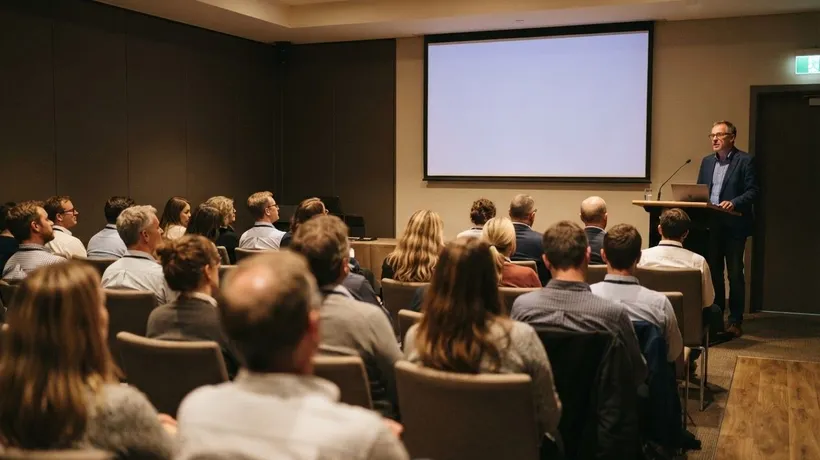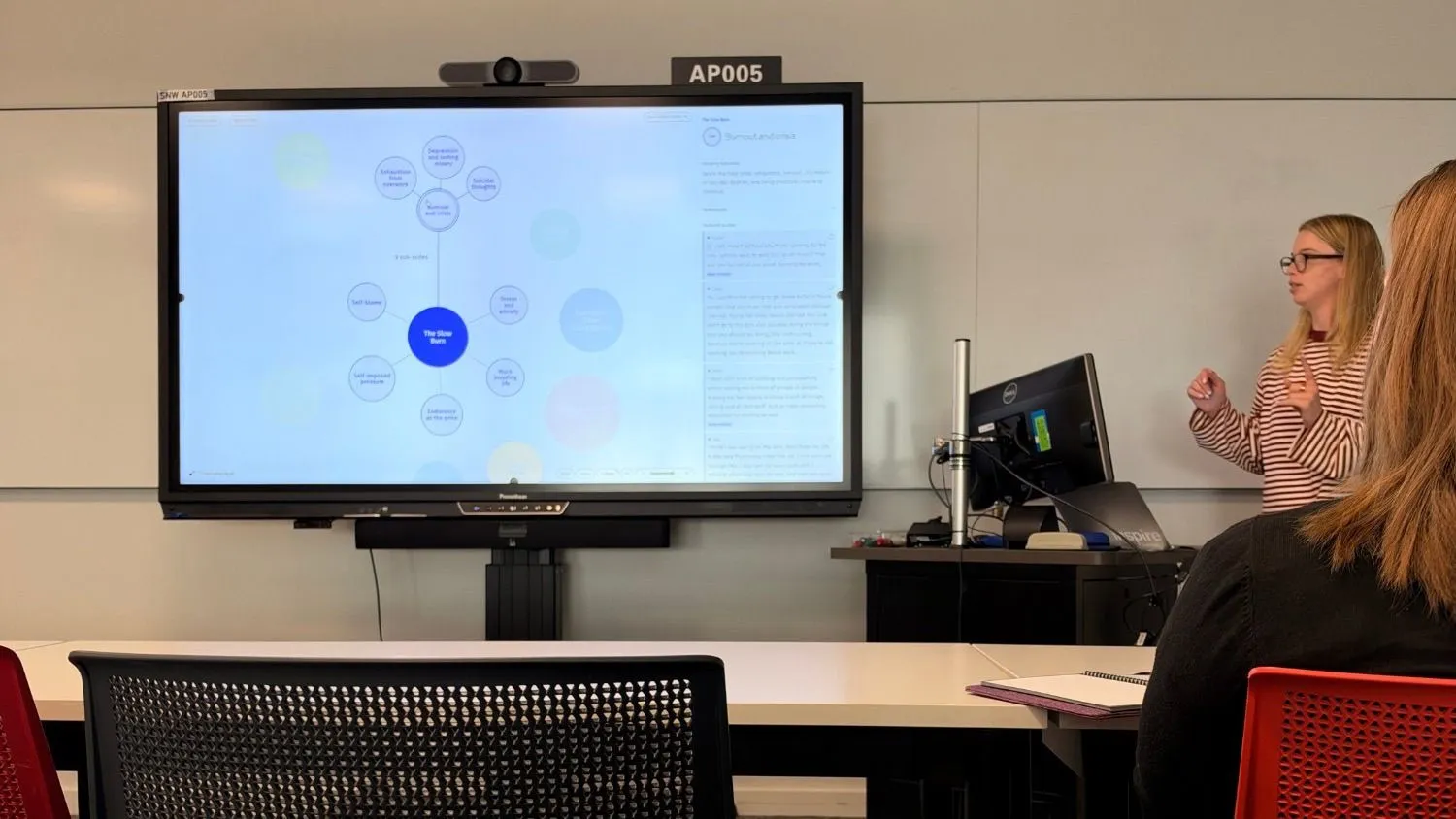
I presented with Themescape V3 for the first time at the 15th ANZOPOB Conference at Massey University, Albany. This article sets out how the talk was put together, so you can do the same with your own deck. The recording is below.
Why move between slides and the map
A conference talk needs slides for the research questions, the method and the contribution. The themes are harder to show on a slide, because a static figure fixes one arrangement and hides the quotes. At ANZOPOB I kept my slides for the parts they suit and moved into the live thematic map for the emerging themes.
Prepare the deck
Present from slides plays a PDF of your deck inside Themescape. Export your slides as a PDF from PowerPoint, Keynote or Google Slides. Wherever you want the live map to appear, add a slide whose only text is the word Themescape. That slide is the handover point.
Prepare the map
Star the quotes you want the room to see. In Present, a click on a theme or code shows its starred quotes as speech bubbles, up to 8 at a time, and the reader lists every starred quote. If nothing under it is starred, its 2 most illustrative quotes show.
On the day
Open Present and choose From slides, then pick your PDF and press Start. The deck goes full screen, the reader is hidden while a slide is showing, and the controls fade when the mouse is still. The arrow keys move through the slides. When you reach the placeholder slide, the live map opens, reset and ready. A first click on a theme shows its quotes, and a second click opens its codes. Back to slides carries on with the next slide of your deck.
Two switches worth knowing
Quote bubbles turns the speech bubbles off, so quotes show in the reader only and one click opens a node. Focus keeps the node you clicked and its parents clear and fades the rest of the map, so the room can follow one theme at a time.
Data and ethics
Themescape never uploads your project. The data stays on your computer during the talk, as it does during analysis. A projector is still a form of sharing, so check that your ethics approval covers showing quotes to an audience before you present them, and check again before you share a recording.
See it in the recording
The recording of my ANZOPOB talk is below, and the move from slides to the map comes about 8 minutes in. If you would like to try this with your own themes, you can start at themescape.co.nz.