Present in supervision
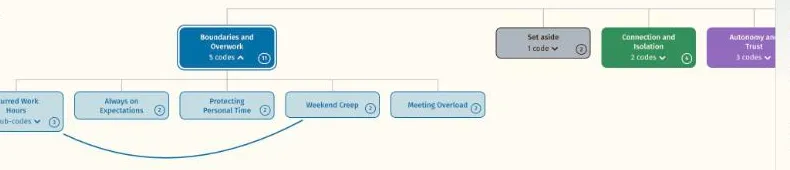
A student opens their map in Present mode and walks you through their themes, bringing their favourite quotes forward as they talk.
For a supervisor and the students they supervise, or a project team on one grant: 2 to 19 people on one plan, with seats you give and take back as people start and finish.

Teams. Every student's map is read from the files on their own computer.
You supervise several students doing thematic analysis, and you want them all to have the same tool without paying for seats nobody uses.
A team plan gives each person their own login and their own projects. You manage the seats; each student keeps their data on their own computer.
A student opens their map in Present mode and walks you through their themes, bringing their favourite quotes forward as they talk.
Select any theme to see its working definition and quotes side by side, and talk about whether they still belong together.
Each student saves their project as files on their own computer, and can send them to you when they choose.
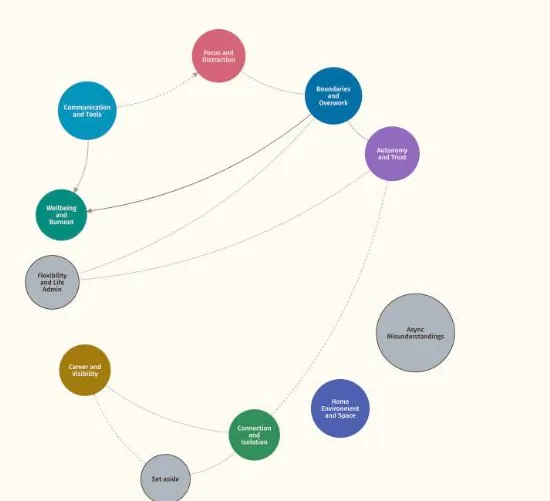
Students mark links between themes as Empirical or Theoretical, with a note on why, so you can discuss the reasoning.
Refine definitions and quotes in Work mode, then hide the tools to present to a supervisor, a panel or a conference.
From buying the seats to a new student joining.
Named staff and student seats for 2 to 19 people, on a semester or annual plan, paid by card or by invoice. For 20 people or more, see the Organisations page.
Prices are in New Zealand dollars and include GST for customers in New Zealand. Staff and student seats are priced separately.
Supervision about themes usually sits in phases 4 and 5 of reflexive thematic analysis: developing and reviewing themes, then refining, defining and naming them.
Group related codes into candidate themes. In Themescape, drag related codes together on the map and watch the groupings take shape.
Check each theme against the coded data and the whole set. Move, merge and rename themes on the map and read the quotes behind each one until it holds.
Write a clear definition and choose the quotes that show each theme best. In Themescape, open each theme to write its working definition and mark its strongest quotes.
Present the map and its quotes in your thesis, paper or slides. Switch to Present mode and export the map as a figure.
Seats are logins, not shared storage. Each student's files are read in their own browser, and the person who manages the seats sees names, seat types and last sign-in, never research data.
Transcripts and quotes are read locally and never leave the machine.
No file submission or permanent storage is required.
Verbatim quotes are never altered, with a separate refined column for presentation wording.
The Google Sheets mode is opt in, for non-sensitive data only.
Tell us how many people need access and when you would like to start. We reply within two working days, with no sales call unless you want one.
Prefer email? Write to support@themescape.co.nz
Short answers to what researchers ask most. The FAQ page has the rest.
A plan for 2 to 19 people, such as a supervisor and the students they supervise, or a project team on one grant. One person buys staff and student seats on a semester or annual plan, manages who holds them, and pays by card or by invoice on request. A team plan shares the bill, not the data: each person works on their own files in their own browser.
No. Each seat is a separate login with its own projects, and each person's files are read in their own browser and never reach Themescape. Students on a team plan do not see each other. The person who manages the seats sees names, email addresses, seat type and last sign-in, never anyone's research data.
Yes, at any time, for example when a student graduates: remove one person and invite the next by email. Seats added part way through a term are charged pro rata, and seat numbers are reviewed at each renewal.
Only when a student sends you their files. Themescape never holds anyone's data, so managing a seat gives no access to the work done on it. A student can send their progress files for you to open in your own account, or share their screen in Present mode during a supervision.
The price. Staff seats are for supervisors, academics and other staff, student seats are for the students on the plan, and both have every feature. Supervisor is a role, not a rate: a supervisor holds a staff seat and can manage their students' seats.
Try the live demo or start a 7 day free trial. Your data is read in your browser and never leaves your computer.