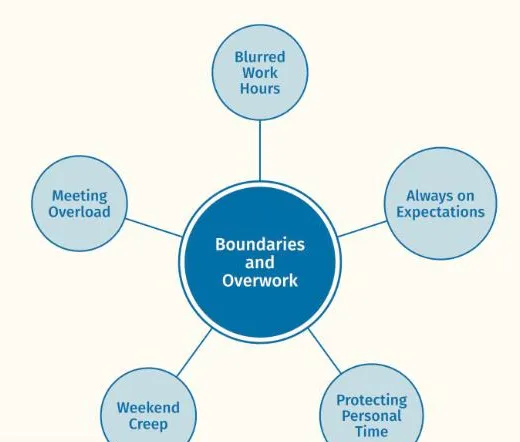
 ThesisOpen →Boundaries and OverworkReflexive thematic analysis · Node network, one themeA findings chapter, full text width · Working Well sample dataset
Build figures in Build mode
Construct your final figure on a free canvas, starting from a node network, hierarchy or file tree, then export it for a thesis, article or poster. In beta.
Used in phase 6, writing up
Beta
Build mode is working and still being tested. Tell us what you find.
A free canvas for your final figure
Build mode is a free canvas for constructing your final figure for a thesis, article or poster. Each figure style becomes a starting layout, and Build tools let you move anything, change node and branch shapes, add arrowheads and influence signs, frame linked factors and add notes. Quotes never appear on the canvas. Build mode is chosen on the Start a project screen. Figures you build are kept in the layout file, which you save with Save layout and bring back with Open layout, so a figure can be picked up in a later session.
Build mode is in beta. It works, and it is still being tested, so its controls may change. Feedback on it is welcome.
At a glance
- Status
- beta
- Chosen on
- the Start a project screen
- Saved with
- Save layout, in the layout file
- Opened with
- Open layout, or the Layout slot on Start a project
Building a figure
Build starts from one of the figure styles, then everything is yours to move and change.
Your figures, in your files
Build mode saves to a layout file on your own computer. It holds names and positions, never quotes.
Read locally
Transcripts and quotes are read locally and never leave the machine.
Nothing to submit
No file submission or permanent storage is required.
Quotes untouched
Verbatim quotes are never altered, with a separate refined column for presentation wording.
Sheets is opt in
The Google Sheets mode is opt in, for non-sensitive data only.
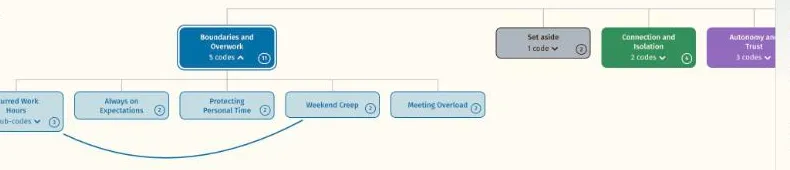
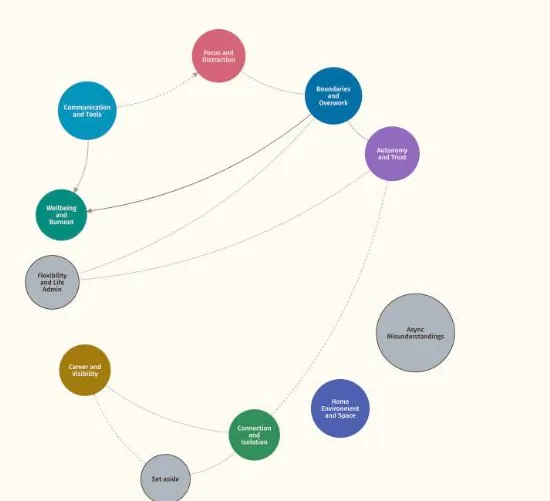
The layout file
It holds the figures you build as names and positions only, never quotes. A file that is not a Themescape layout file is turned away with a short note.
Exporting a built figure
Export figure, in Build tools, opens Figure export with the figure as it stands, leaving out the nodes and branches you have hidden. A warning reminds you that a note written in Build must not quote a participant unless your ethics approval allows it.
Related features
The features you will use alongside build mode, closest first.
See your own themes come to life
Try the live demo or start a 7 day free trial. Your data is read in your browser and never leaves your computer.